Guides by role
Managers
Managers are the IntriFund team. You decide who becomes a member, which programs exist, which clinics may treat, and when a treatment is paid for.
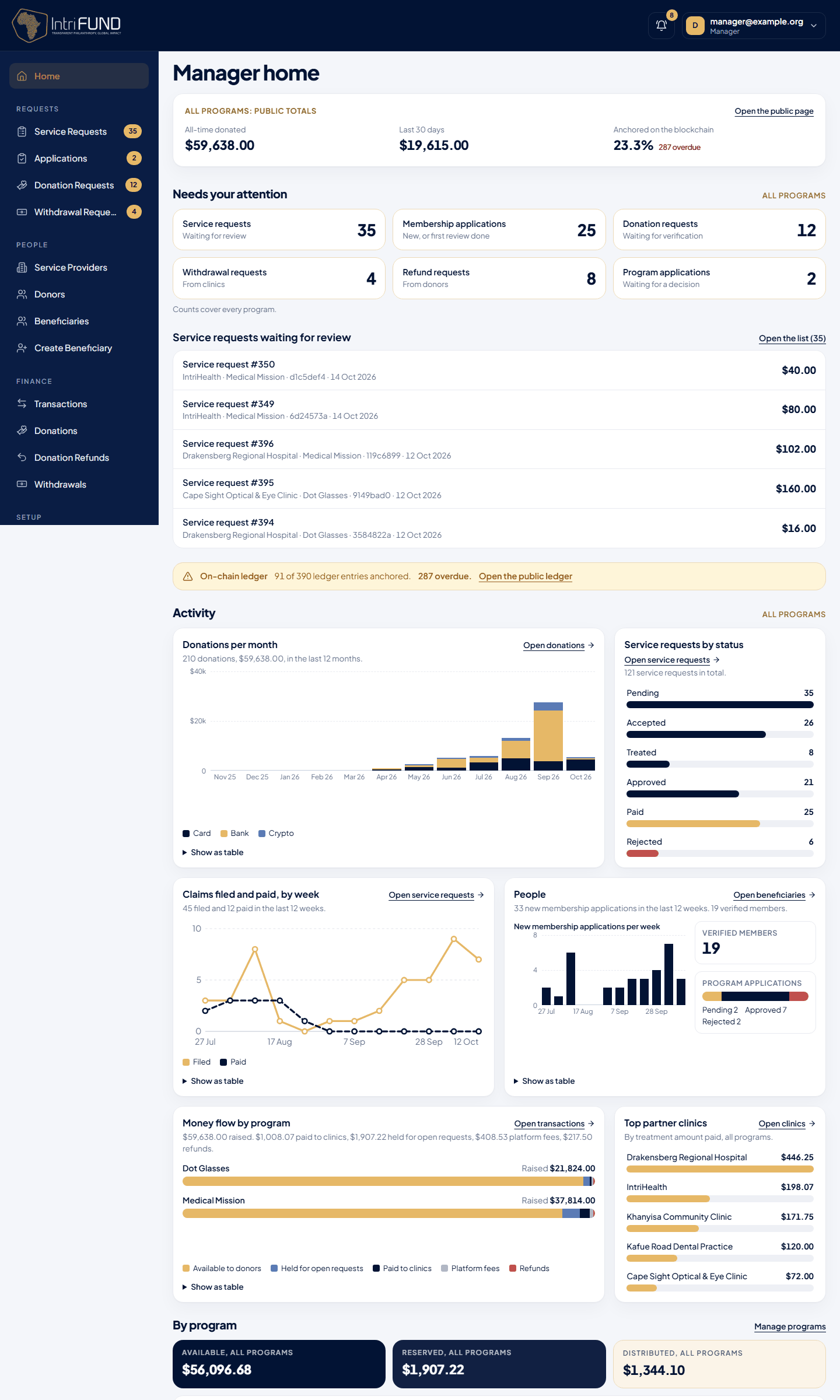
The home screen is an overview of all programs. It shows Needs your attention: service requests, membership applications, donation requests, withdrawal requests, refund requests and program applications that are waiting, each with a link. Under it are the newest items of the most urgent queue, a line for the on-chain ledger (it turns amber only when entries are overdue or failed to publish), charts of donations, service requests, money, people and top clinics (each has a table you can open), and a table of every program with its funds and waiting items. Every card links to the list behind it.
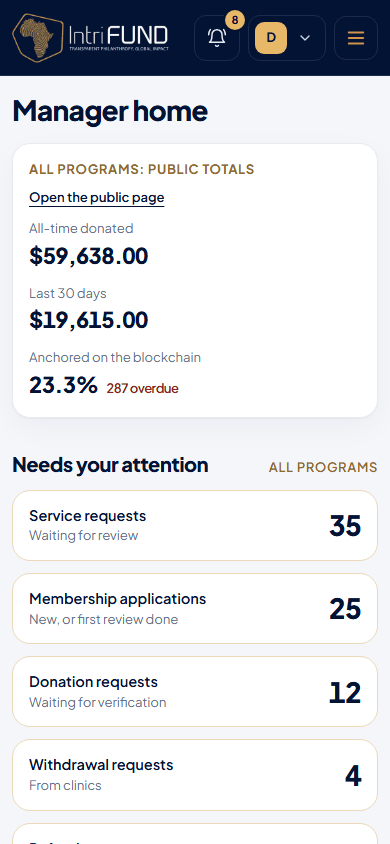
A manager can see what needs attention from a phone. Approvals and payments are best done on a larger screen, where the documents are easier to read.
The menu is grouped. Requests: Service Requests, Applications, Donation Requests and Withdrawal Requests, each with a count. People: Service Providers, Donors, Beneficiaries and Create Beneficiary. Finance: Transactions, Donations, Donation Refunds and Withdrawals. Setup: Programs and CPT4 Codes. At the top of the home page, All programs: public totals shows the all-time and last 30 days donations and how much of the ledger is anchored on the blockchain.
There is no program switcher. Every list shows all programs and has a Program column. Use the Program filter above a list to narrow it to one program; it works together with the tabs, search and paging. When you approve, verify or pay something, it always uses the program of that item.
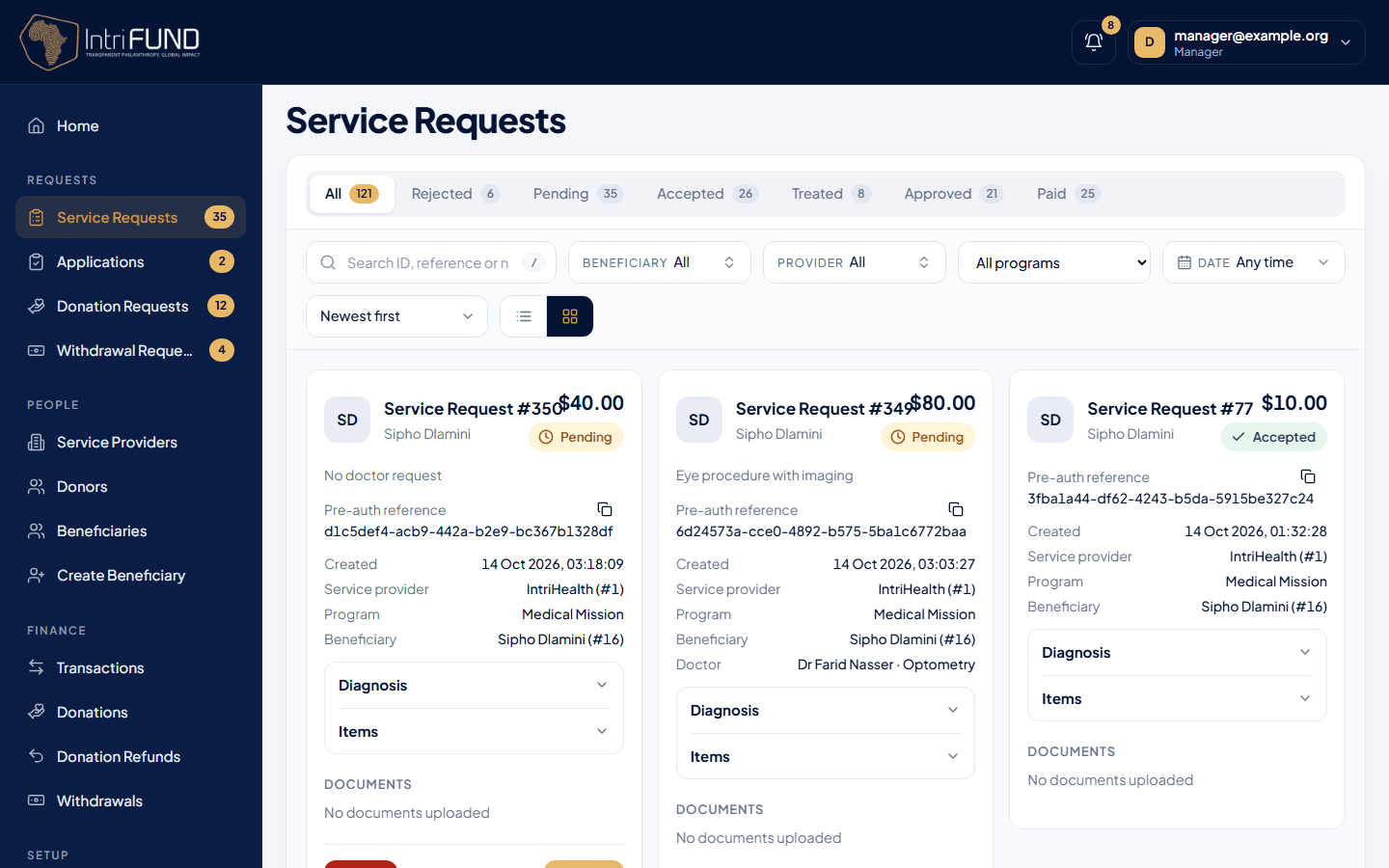
Open Service Requests in the menu for the claims list.
Review membership applications
Open Beneficiaries. The list shows every person, with their APP- number under the name and their BEN- number once they have one. You can search by name or by either number.
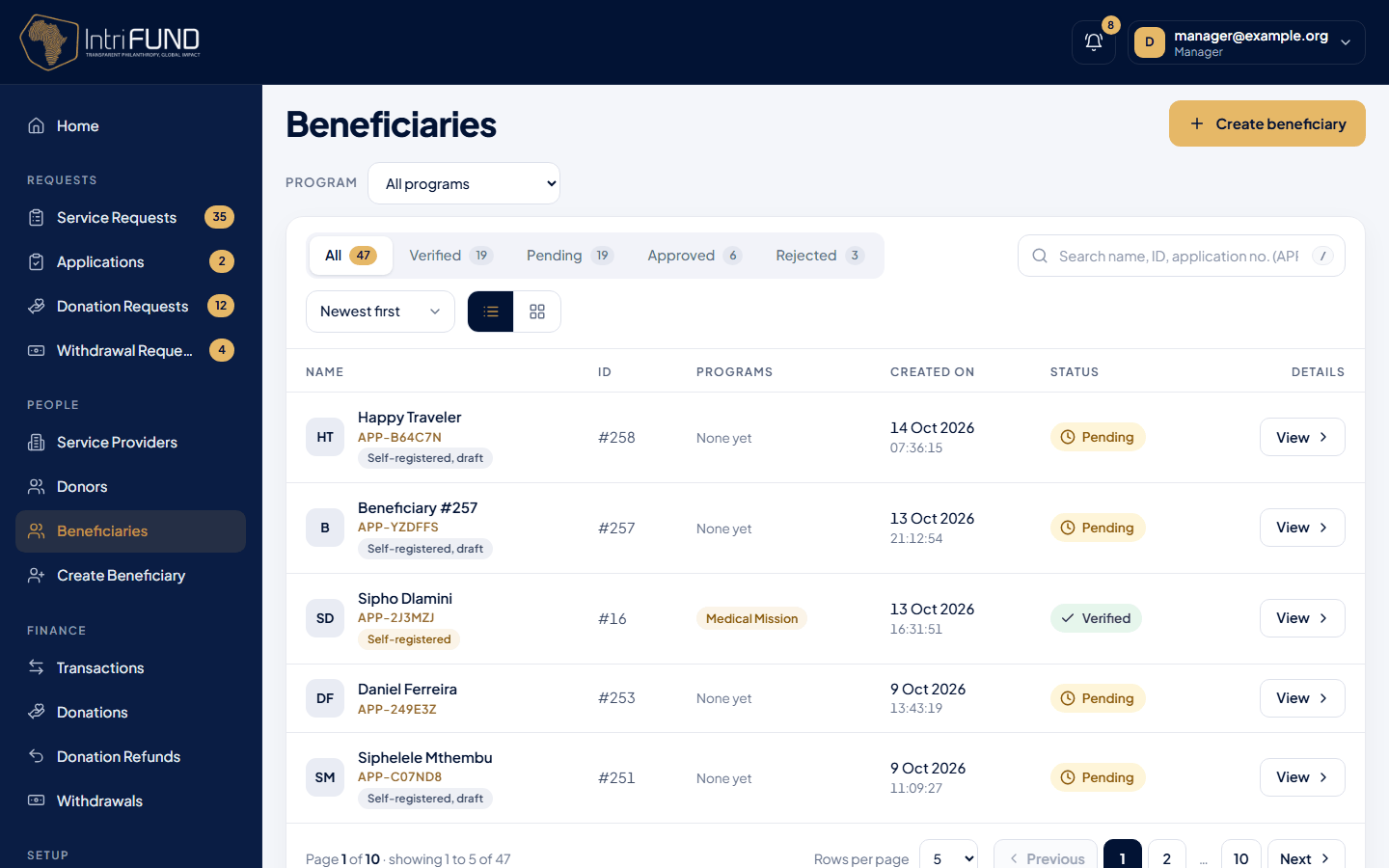
Open a person to see the whole application: personal details, medical and financial information, the uploaded ID, utility bill and signature, and the consent answers. At the top, a short strip shows who has approved and who is next.
Read the application and open the documents
Check that the ID and utility bill match the details. Check the face photo if there is one.
Manager 1: press Approve or Reject
Approve moves the record to Approved by Manager 1. To send it back for changes, reject it and give the reason, which the applicant will see.
Manager 2: give the final approval
The Approve button only works after Manager 1 has approved. If Manager 2 tries first, a message says so.
The Identity checks card
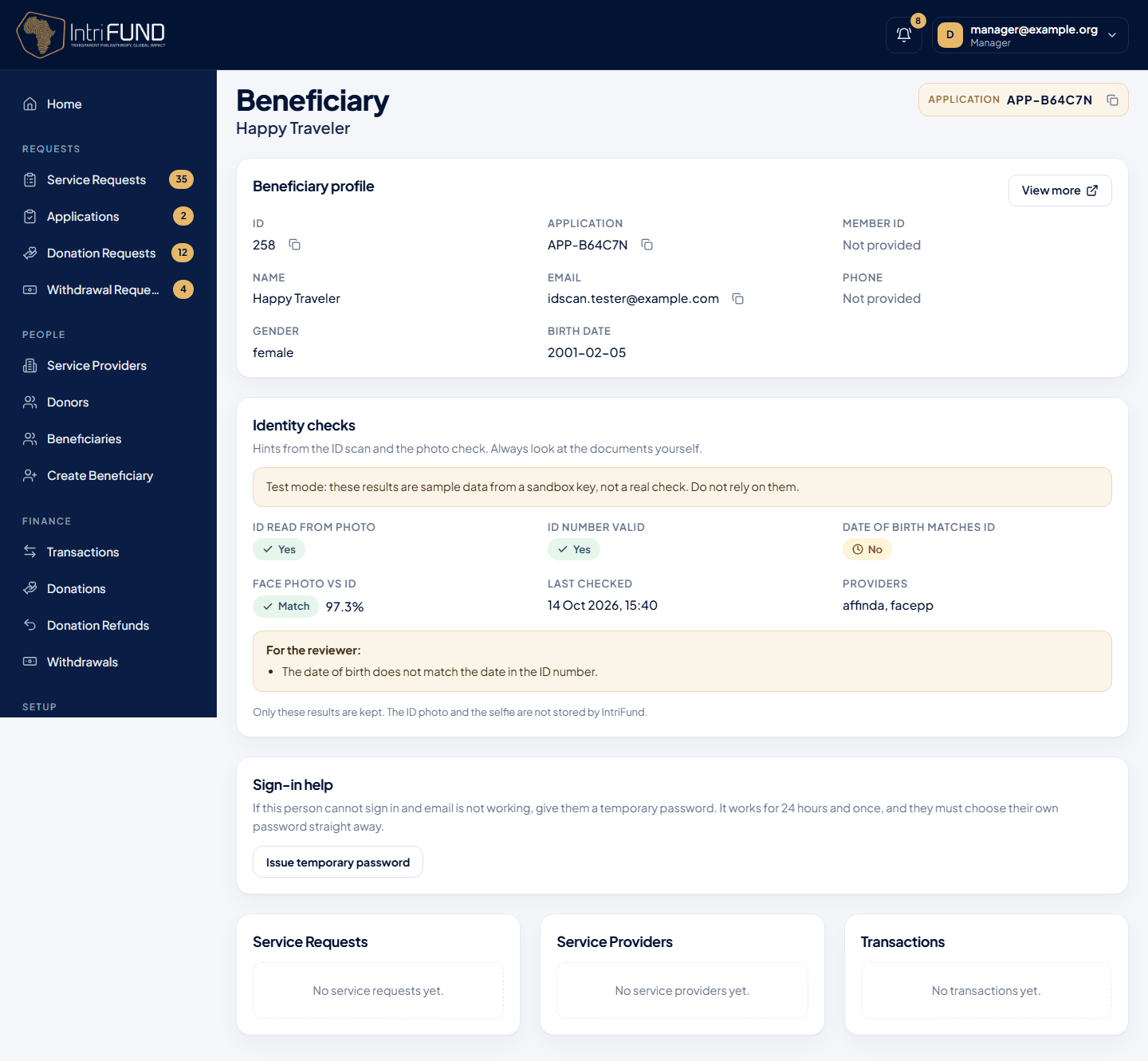
If the member used the optional ID scan or face check, the record has an Identity checks card. It is a hint for the reviewer, never a decision. It shows four things: ID read from photo, ID number valid (a South African ID number or a Zambian NRC), Date of birth matches ID, and Face photo vs ID, which is a match, Needs a look or No match with a score. A “For the reviewer” note lists anything that does not add up. When the face is not a clear match, compare the photo and the ID by eye. A warning shows when the service ran in test mode, because the results are then sample data. Nothing is blocked by these checks. Only the results are kept, not the ID photo or the selfie.
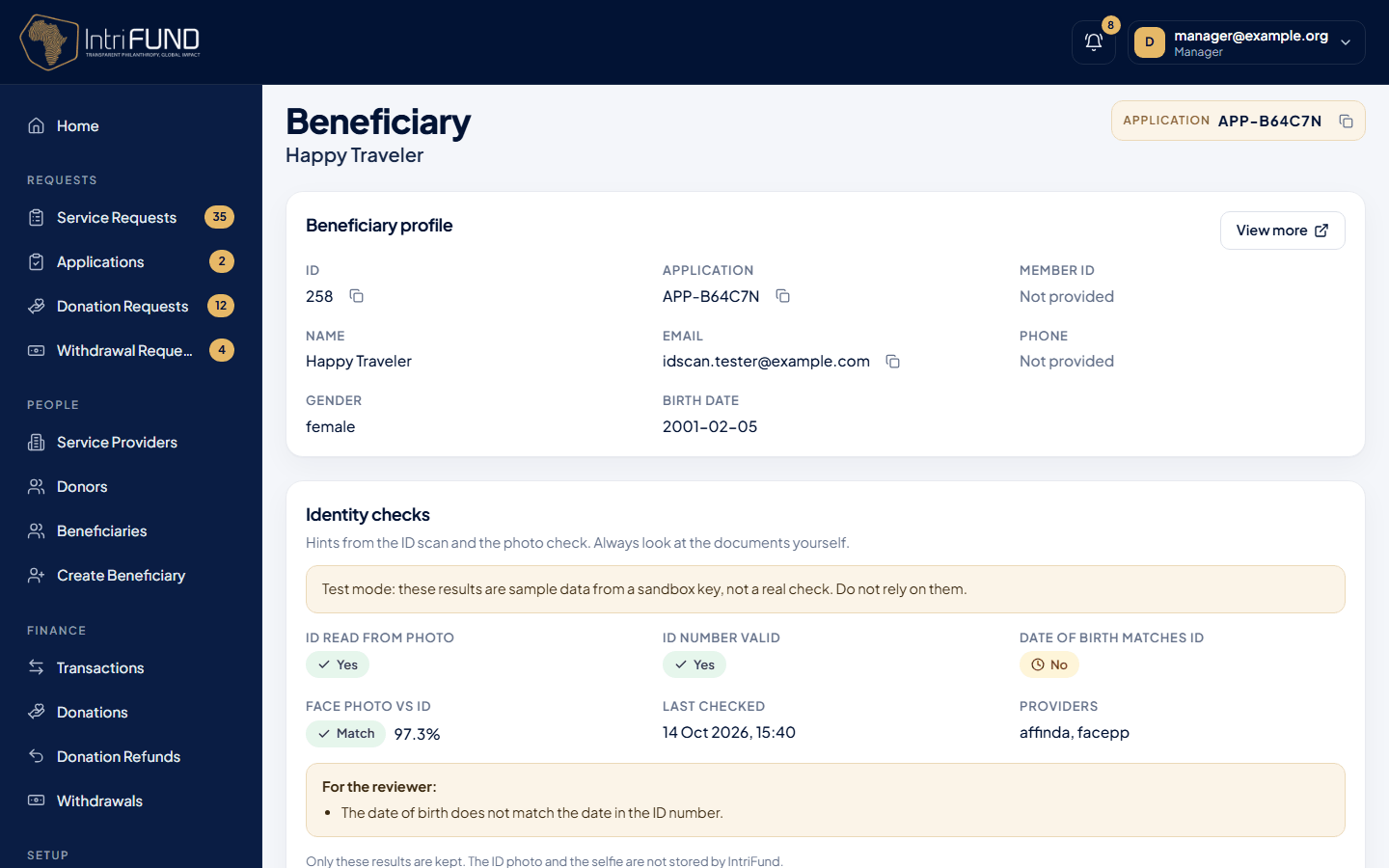
If a person cannot get back into their account, open their record, donor page or provider card and press Issue temporary password. The password is shown to you once. It works for 24 hours and for one sign-in, and then the person chooses their own. Read it out or send it by a safe route, and never by a public channel.
Verify and issue a Member ID
When Manager 2 approves, the record becomes Verified and the member receives a BEN-XXXXXX Member ID. It is issued once, never changes and is never reused. From that moment the person is a member and clinics can find them with an eligibility check. They have no cover yet.
Clinics cannot create verified members. A clinic can refer a patient, and managers can create a record with Create Beneficiary. Such a record is checked in the same way before it is verified.
Enrol a member and issue a Coverage ID
Cover is per program. There are two ways to give it:
- The member applies from Programs and you approve it (see Program applications below). This is the normal route.
- You enrol the member yourself from their record, choosing the program.
Either way you set the start date, the end date, the coverage percent and the auto-accept amount (requests up to this amount are accepted without you). The system creates a COV-XXXXXX Coverage ID. If the member already held cover in that program that has ended or been cancelled, the same row is renewed and keeps its ID: one cover row per member and program. Enrolment needs Manager 1 and a verified member.
Programs
A program is a fund for one kind of care. Open Programs to see all of them, each with its status, requirements, covered services, accredited clinics and pending applications.
| Status | Meaning |
|---|---|
| Open | Active, and today is inside the application window. |
| Opens 1 Nov | The window has not started. |
| Closed | The window has ended. |
| Inactive | Switched off. Members cannot apply. |
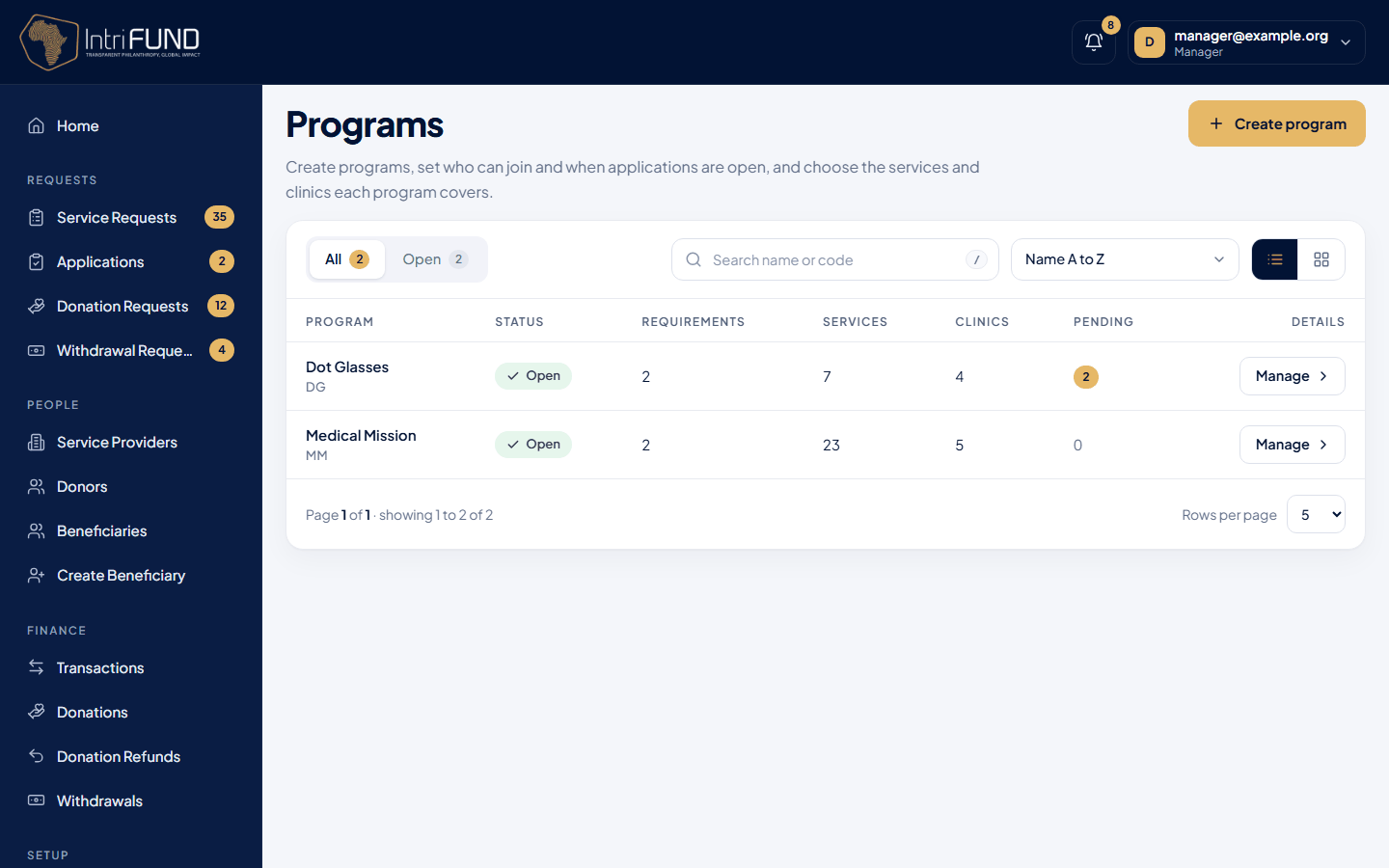
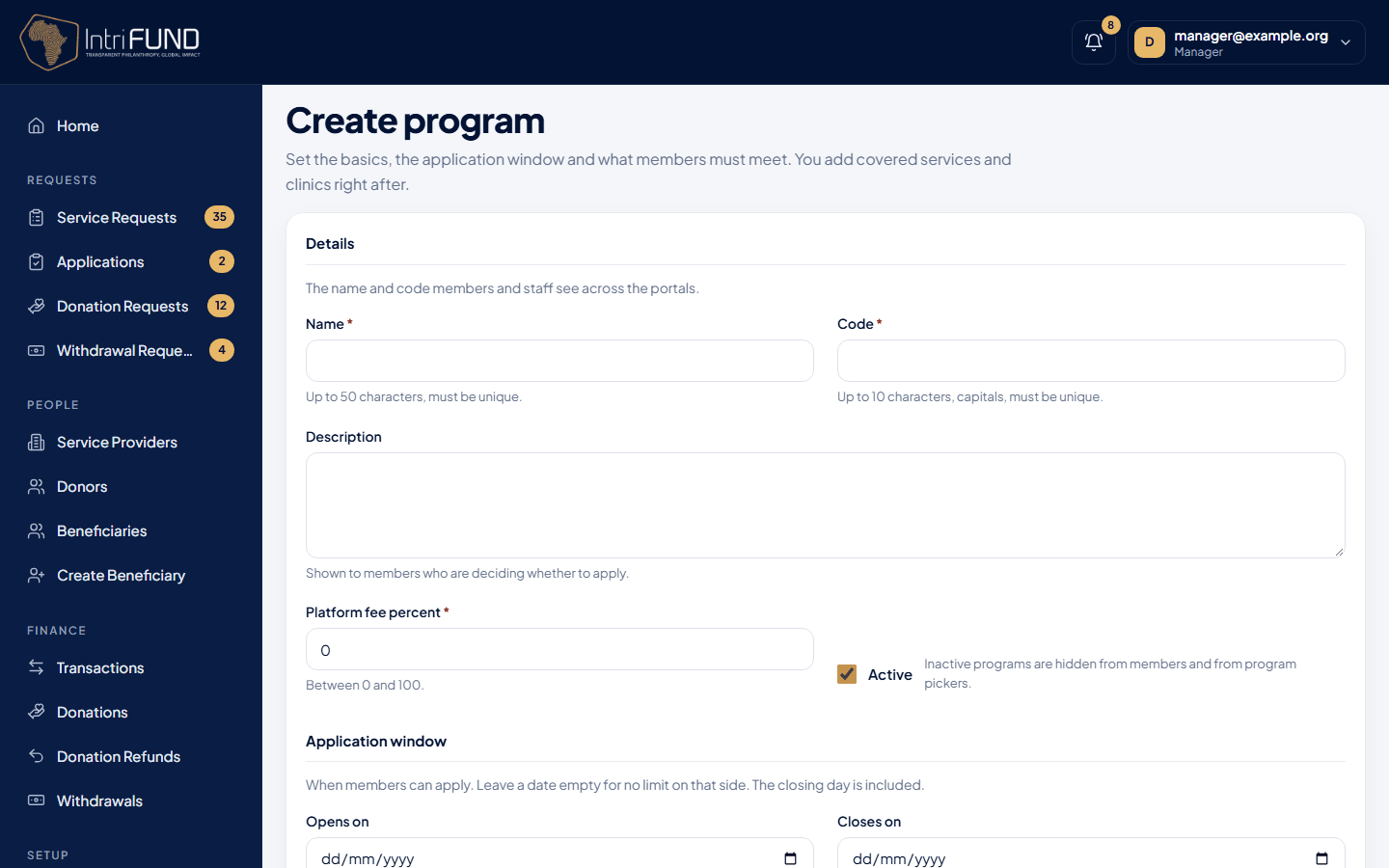
Create a program
Press Create program
Give it a name (up to 50 characters, unique) and a code (up to 10 capital letters, unique, such as MM or DG). Add a description that members will read on the card, and the platform fee as a percent from 0 to 100.
Set the application window (optional)
Choose when members may start and stop applying. The closing day is included. Leave a date empty for no limit.
Add eligibility requirements
These are the questions a member answers. See below.
Save, then add services and clinics
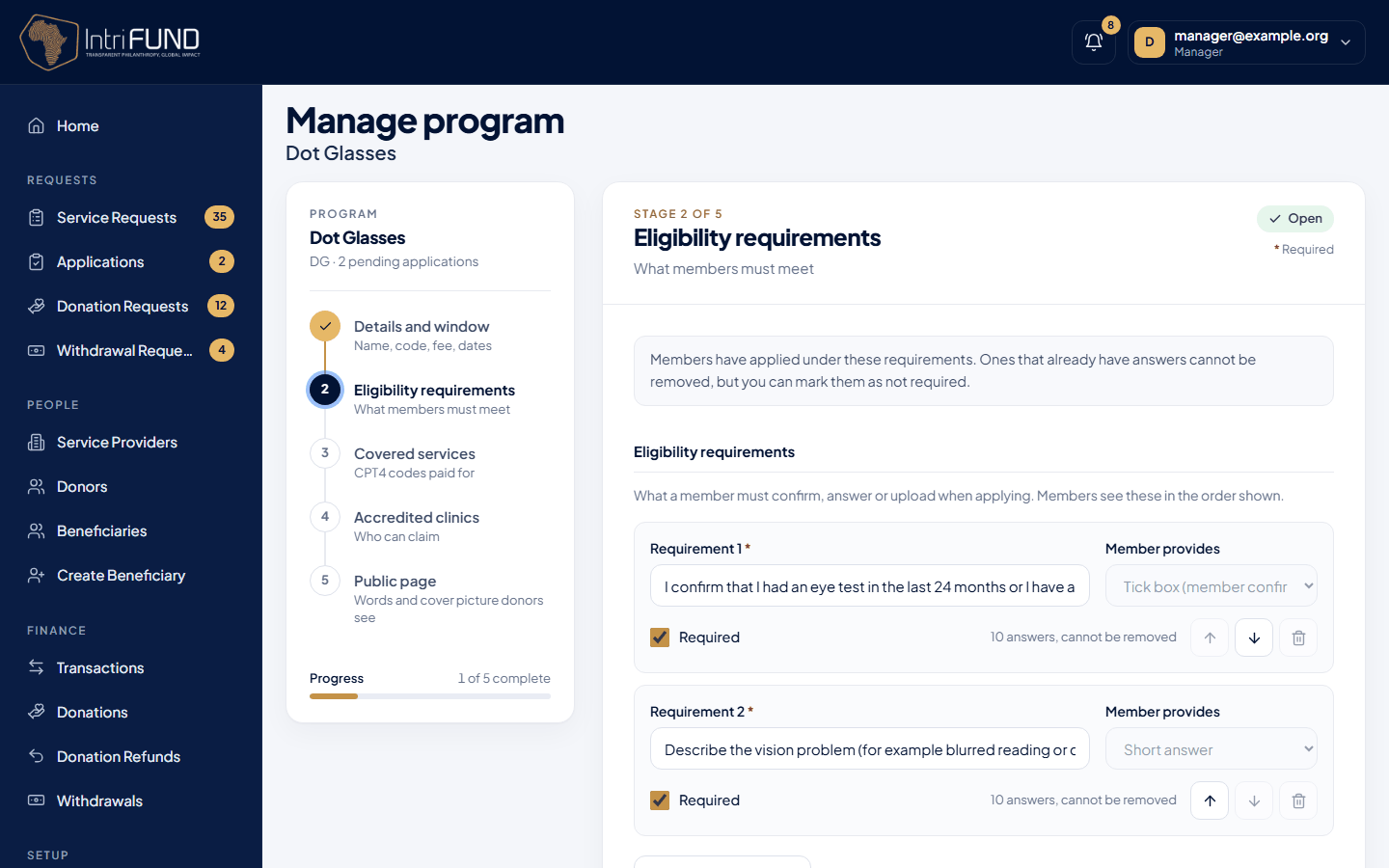
After saving, the program opens in five stages: details, requirements, services, clinics and public page.
- Requirements
- An ordered list. Each is a tick box (confirm something), a text answer (up to 2000 characters) or a document upload (PNG, JPG or PDF up to 5 MB). Mark each as required or not. A requirement that members have already answered cannot be removed. Mark it as not required instead.
- Covered services
- The treatments the program pays for, picked from the CPT4 code list with a search box. A clinic’s eligibility check names a service and we check it against this list.
- Clinics
- Which verified clinics are accredited for this program. Only they can check eligibility and claim for it.
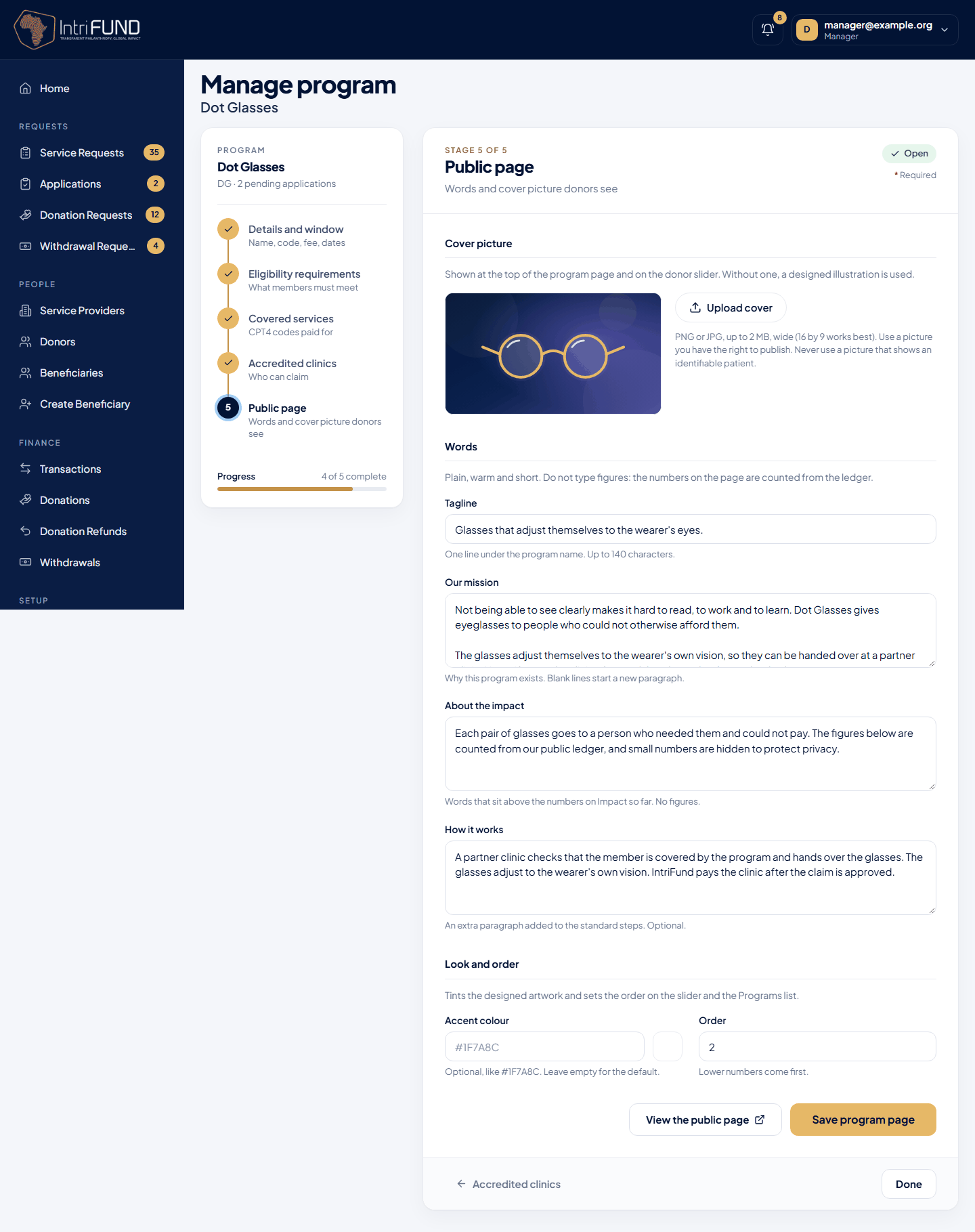
The public page of a program
The fifth stage, Public page, is what donors and the public read on /programs. You can set a short tagline, the mission, a few words about the impact, extra text for how it works, an accent colour, the order of the programs and a cover picture (PNG or JPG up to 2 MB). Without a picture, the page draws a simple picture for the program. The numbers on the page are never typed in: they are counted from the public ledger. See Programs.
Program applications
Applications lists every request to join a program, pending first, with a count in the menu. Filter by program or status. Open one to see the member, their Member ID, each requirement with the member’s answer, and any file they uploaded (a link that expires in an hour).
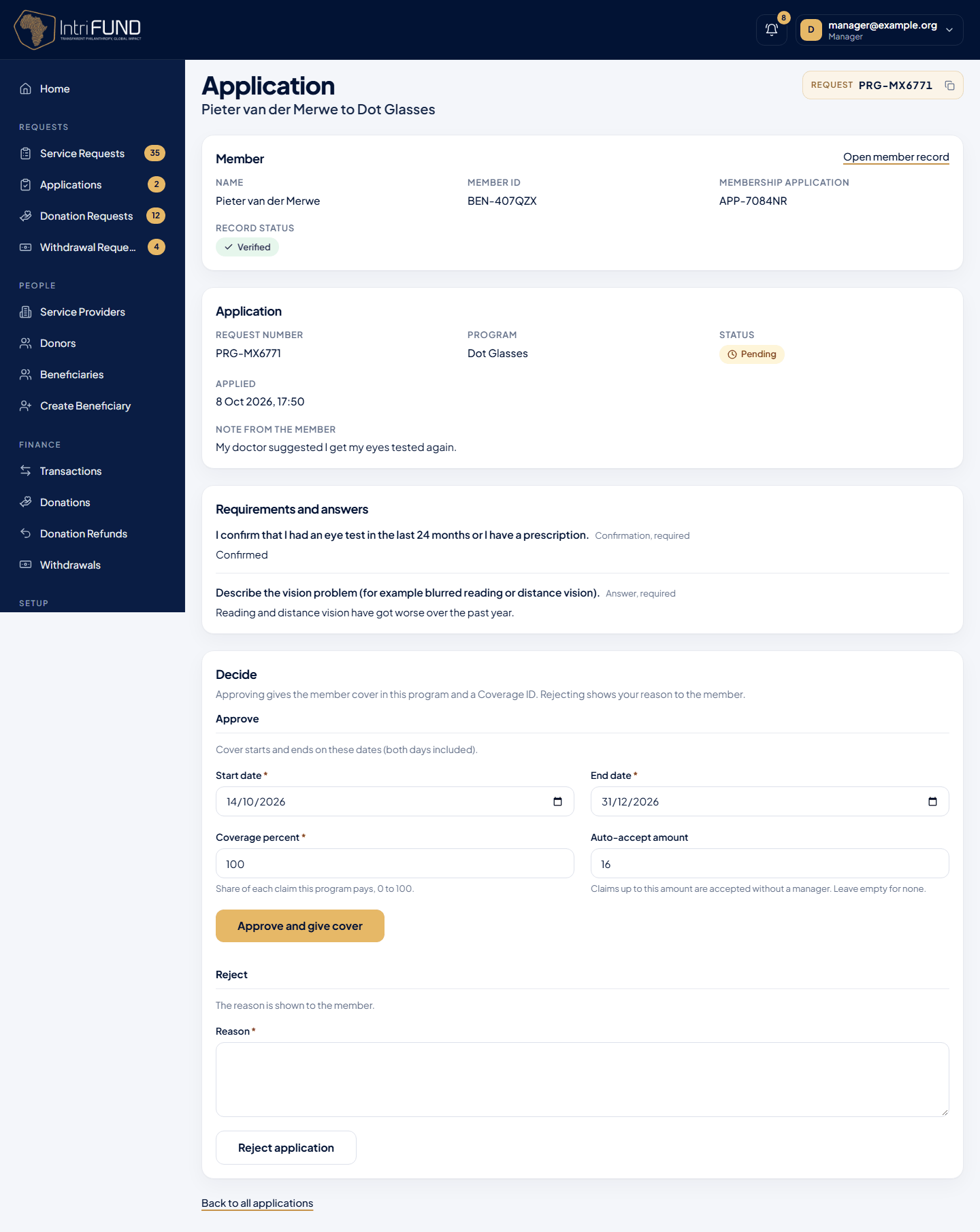
- Approve (Manager 1): confirm the start date, end date, coverage percent and auto-accept amount. The member is enrolled and gets a Coverage ID. A bell notification tells them.
- Reject: a reason is required, and the member sees it.
- Only a pending application can be decided. If someone else decided it first, or the member withdrew it, you will be told it is already decided.
Service request review and approval
Clinics send service requests after an eligible check. The home screen lists them by status, for all programs. For each request you can see the member, the clinic, the check reference, the items, the doctor (name and specialty only), and the cost.
| Step | Who | What happens |
|---|---|---|
| Pending | Manager | You read the request. Accept it, or Reject it with a reason. |
| Accepted | Manager | The cost is locked from donor funds. A subsidy donor is used first, then donors with the largest balance until it is covered. |
| Treated | Clinic | The clinic marks the treatment as completed. |
| Approved | Manager 1 | You confirm the treatment. |
| Paid | Manager | The clinic share is paid to the clinic’s account and the platform fee to IntriFund, in one step. |
Providers
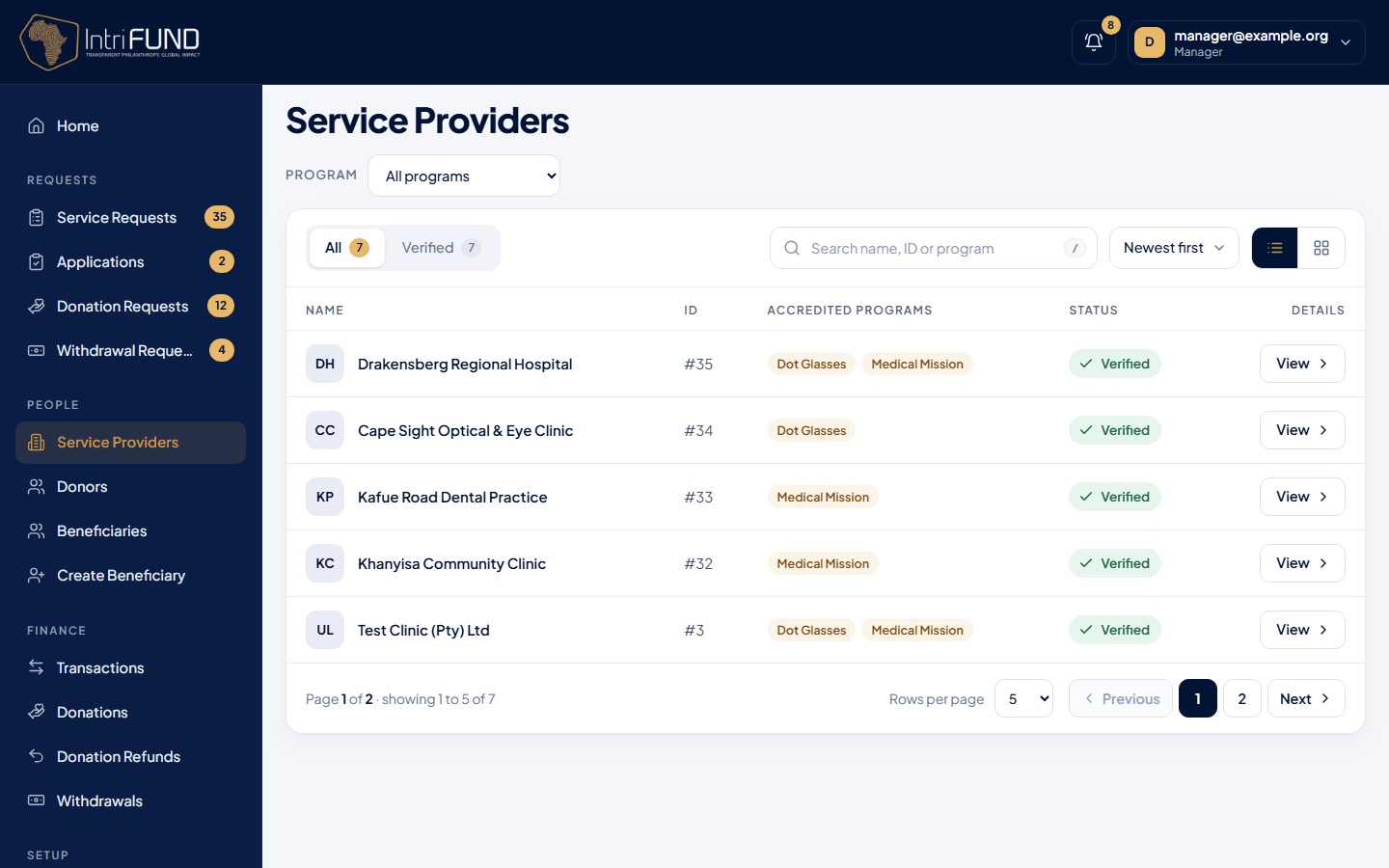
Service Providers lists clinics and hospitals. A new organisation arrives as a pending application. Open it to read the details, then Approve or Reject it (a message is required for a rejection). The card shows whether it is a clinic or a hospital and how many doctors it has. You can also Suspend a provider, which stops it checking, claiming and withdrawing. Accreditation for each program is set on the program itself, under its Clinics stage.
Donors, donations and refunds
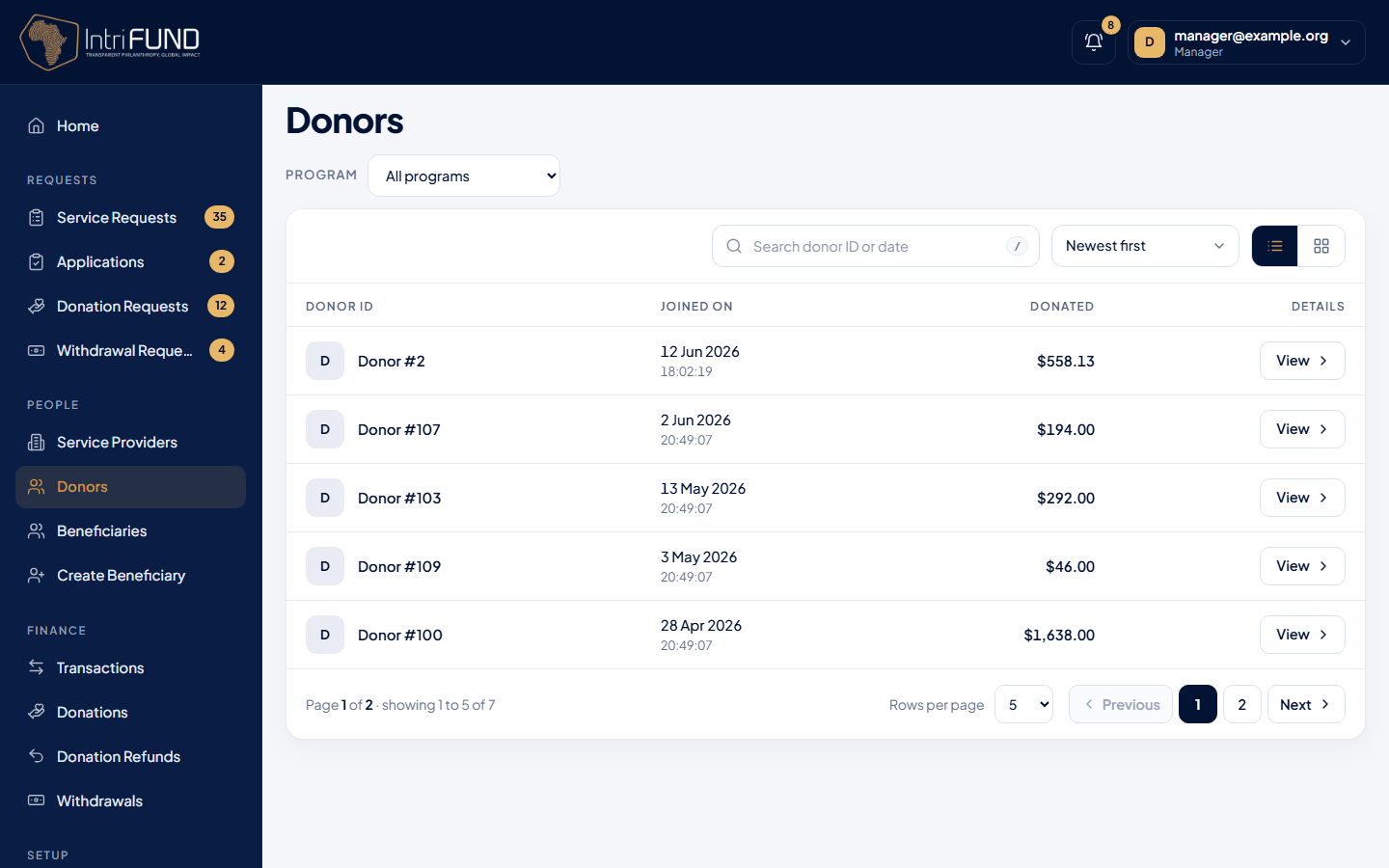
- Donors: everyone who has given, with their balance and use. Open a donor for their donations and the requests their money funded.
- Donations: every completed donation by card, bank or crypto.
- Donation Requests: bank transfers that donors have promised. When the money appears in the bank account, confirm the request and the donation is written to the ledger.
- Donation Refunds: requests for money back. Review, then process. The ledger moves the funds, and then the real money is sent. A request can be rejected with a reason.
Withdrawals
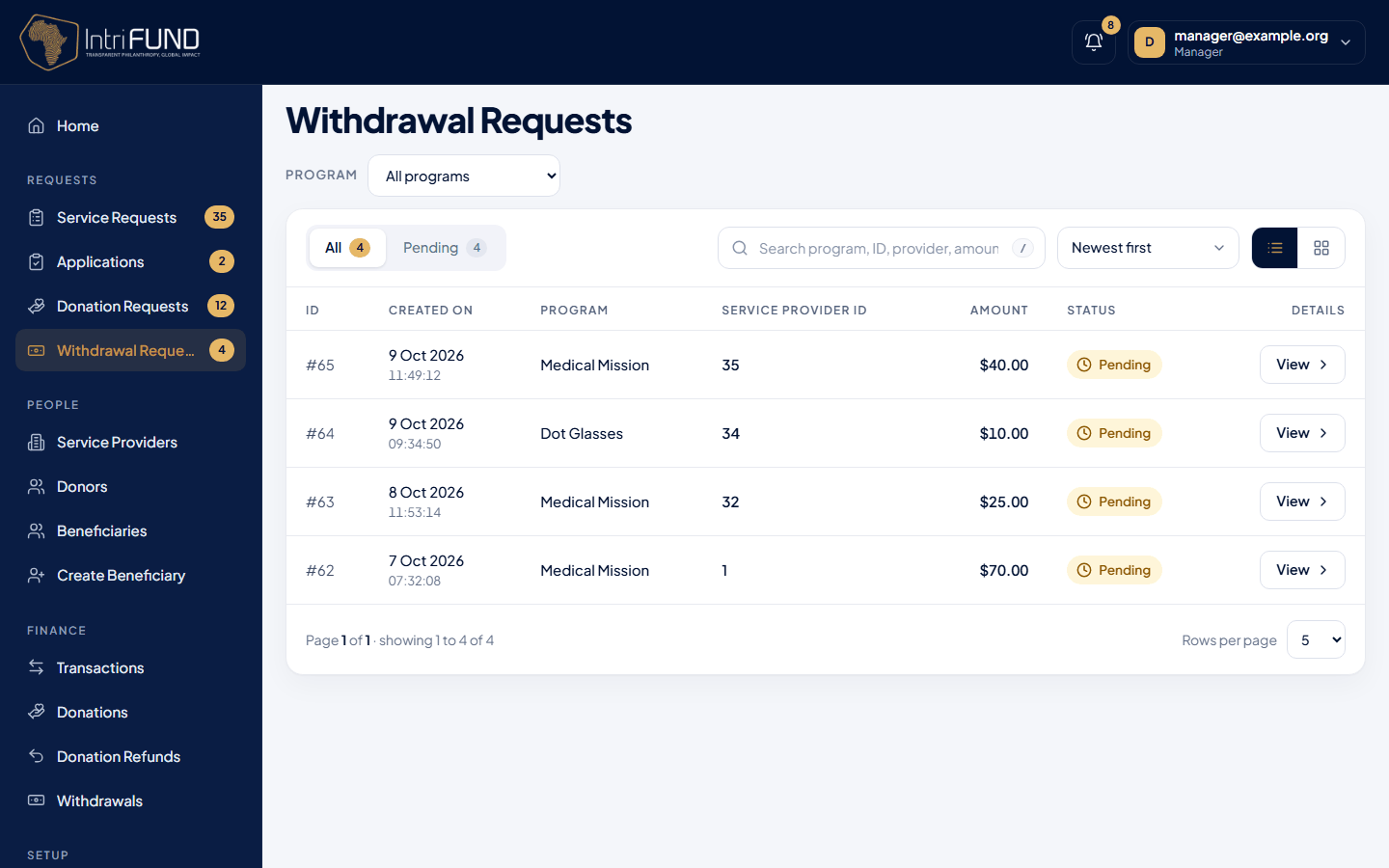
Withdrawal Requests lists the money clinics have asked to take out. Check the destination, then process it. The ledger moves the money out of the clinic account, and the funds go by bank transfer or crypto. Withdrawals keeps the history.
The ledger
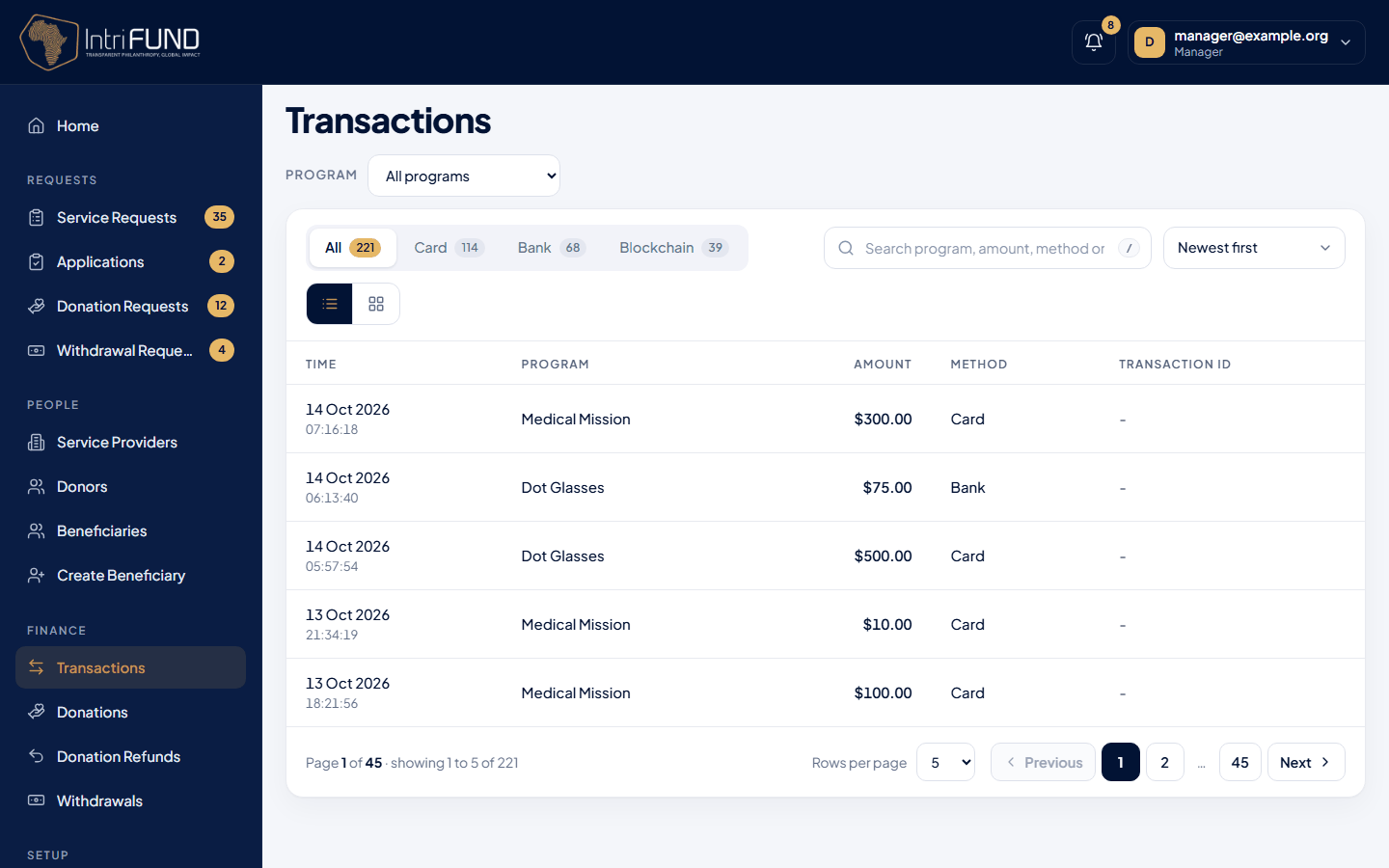
Every donation, hold, payment, fee, withdrawal and refund is one line in a double-entry ledger. Transactions shows the lines and the balance after each one. The lines are published to a public blockchain, so the history cannot be changed afterwards. No names or health information go on the chain. For how it works see Blockchain and tokens and Security and privacy.
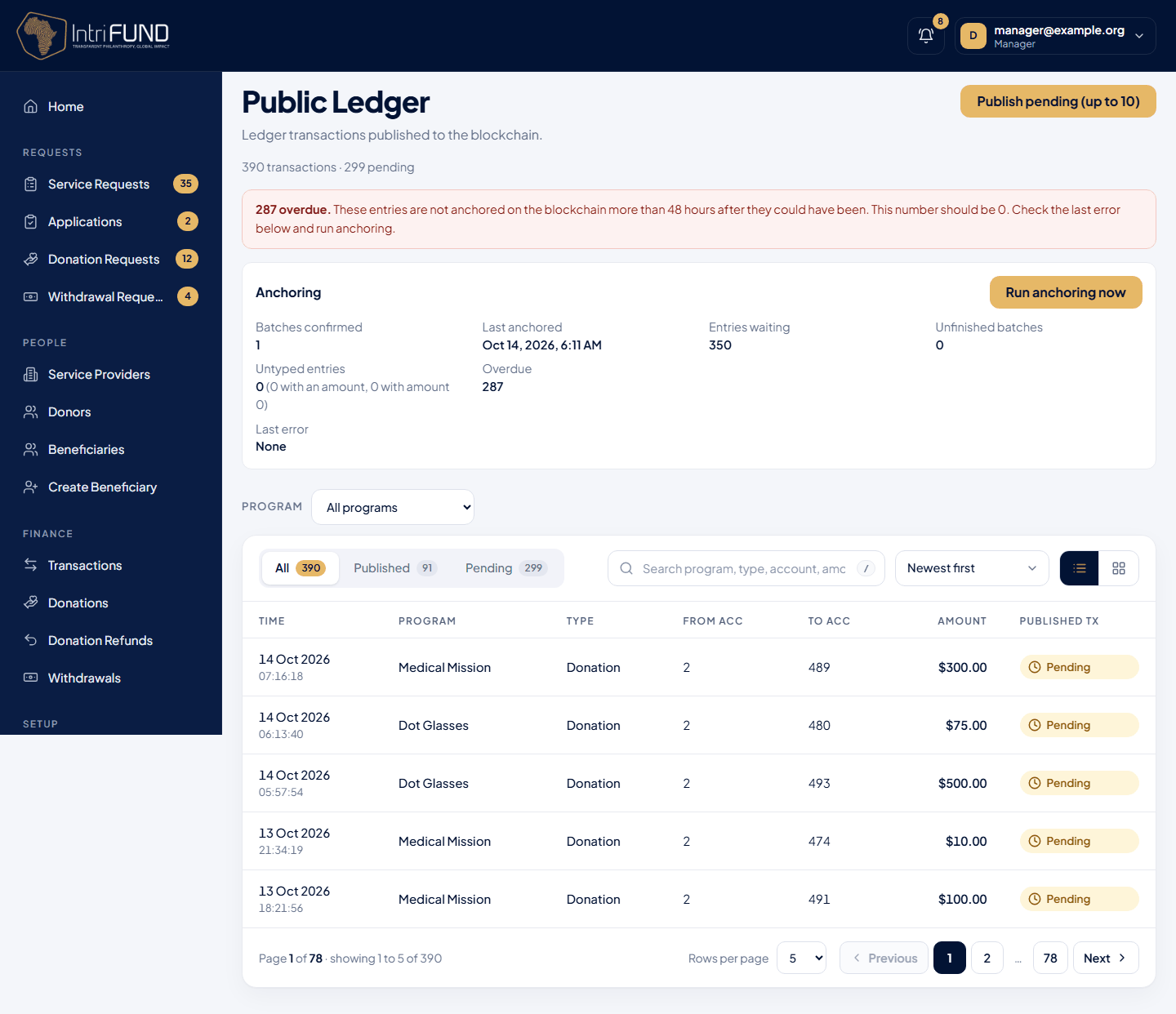
Public Ledger: anchoring and tokens
Public Ledger shows what has been published to the blockchain. It is not in the side menu. Open it from the on-chain ledger line on the manager home page. At the top, the Anchoring block lists the batches confirmed, when the last one was anchored, the entries still waiting, any overdue entries, and the last error. An entry is overdue when it is still not anchored 48 hours after it could have been. That number should always be 0, and a red notice appears when it is not. Where tokens are switched on, a Tokens block shows how many gifts are queued, sent, confirmed or failed, the tokens in the vault against the amount the ledger expects, and a button to run the conversion now. Below the blocks, every ledger line shows whether it has been published, with a link to its transaction.